GiVo Stream User Guide
Every screen, every button, every color — explained. This guide covers GiVo Stream on iPhone & iPad and on Apple TV, plus the free GiVo Server DVR companion for Mac, Windows, and Linux.
Contents
- Welcome to GiVo Stream
- First steps: your playlist & guide
- On iPhone & iPad
- On Apple TV
- The progress bar, decoded
- Recording with GiVo Server
- Catchup: replay what you missed
- VOD: Movies & series
- Multiview
- Sports Zone
- Reminders
- Profiles & sharing
- Customization, room by room
- Sync & Data
- Parental controls
- Settings, room by room
- Tips & quick reference
1 · Welcome to GiVo Stream
GiVo Stream is a modern media player for iPhone, iPad, and Apple TV. Point it at your own playlists and it turns them into something that feels effortless: a beautiful program guide, instant playback, pause and rewind on live streams, catchup replays, and — with the free GiVo Server app on your Mac, PC, or NAS — a real DVR whose recordings live on your hardware.
What you need:
- An iPhone, iPad, or Apple TV running iOS, iPadOS, or tvOS 18.6 or later.
- A playlist from your own content source — a standard M3U URL or an Xtream Codes login. GiVo Stream does not provide any channels or content itself.
- Optional: the free GiVo Server app on a Mac or Windows computer, if you want to record and schedule recordings.
The first two chapters get you set up. Chapters 3 and 4 walk through each app, screen by screen. Chapter 5 explains the color-coded progress bar — worth two minutes, because once you can read it, the whole player makes sense. The rest covers recording, catchup, sync, and the deeper settings.
↑ Back to contents2 · First steps: your playlist & guide
Add a playlist
Open Settings → Playlist Manager → Add Playlist and choose the type that matches what your provider gave you:
- M3U & EPG — paste your M3U URL, and optionally a guide (XMLTV/EPG) URL. The guide URL can be left empty if your source doesn't provide one.
- Xtream Codes — enter the server address, username, and password. Guide data is filled in automatically, or you can supply a custom EPG URL instead.
- Stalker Portal — for providers who give you a portal address and a MAC address rather than a username and password. Enter the portal URL and the MAC exactly as supplied. Channels, categories and guide data all come from the portal itself, so there is usually no separate guide URL to add.
- Text List — a plain list of stream addresses, either pasted in directly or fetched from a Text List URL. Useful for a handful of individual streams that aren't part of a subscription.
Stalker portals allow only one active session per account, so if a stream refuses to start while another device is playing, that is the provider's limit rather than the app's. If you use GiVo Server, let it handle the refreshing — it keeps the single session for you and your devices read from it.
You can add as many playlists as you like. One playlist is active at a time — switch between them from the sidebar's playlist picker (chapters 3 and 4) without re-entering anything.
Guide data & refresh
GiVo Stream keeps the program guide and your playlists fresh on your schedule. In Settings → Playlist / EPG Refresh, pick — separately for playlists and guide data — between refreshing when the app loads, every 1–24 hours, or manual-only. A Refresh Now button is always there when you want it immediately, and you choose how many days of guide data to keep (how far ahead it reaches depends on your provider).
Let your DVR server do the downloading
If you run the free GiVo Server app (chapter 6), flip on Settings → Playlist / EPG Refresh → DVR Server. Your server then downloads playlist, guide, and on-demand updates once and hands them to every paired device over your network — quicker refreshes, and one download for the whole household instead of one per device. A status line under the switch shows whether the server is reachable, and each playlist's card says where its data came from: Received from DVR Server or Refreshed on this device.
- Per-device switch. The toggle applies only to the device you set it on — on for the living-room Apple TV, off for an iPhone, or any combination.
- Your schedule stays yours. Each device's Refresh
Interval controls that device only. The server keeps to its own schedule,
set in the GiVo Server app — or, on headless Linux and Docker, with the
GIVO_REFRESH_INTERVAL_HOURSsetting (see the Linux & NAS guide). - Automatic fallback. If the server is unreachable, the device refreshes on its own and hands the job back by itself once the server returns.
- Refresh Now always works. A manual refresh fetches the very latest immediately, wherever the work normally runs.
3 · On iPhone & iPad
3.1 The tab bar — and making it yours
Across the bottom of the screen sits a floating tab bar. Out of the box it shows Channels, Guide, and Search, with Settings always pinned at the end. But it's yours to arrange: in Settings → Customization → Home Tabs you can enable, disable, and reorder tabs for Channels, Guide, Search, Reminders, Catchup, and DVR. Enable more than four and the extras tuck neatly into a … overflow menu.
3.2 Channels
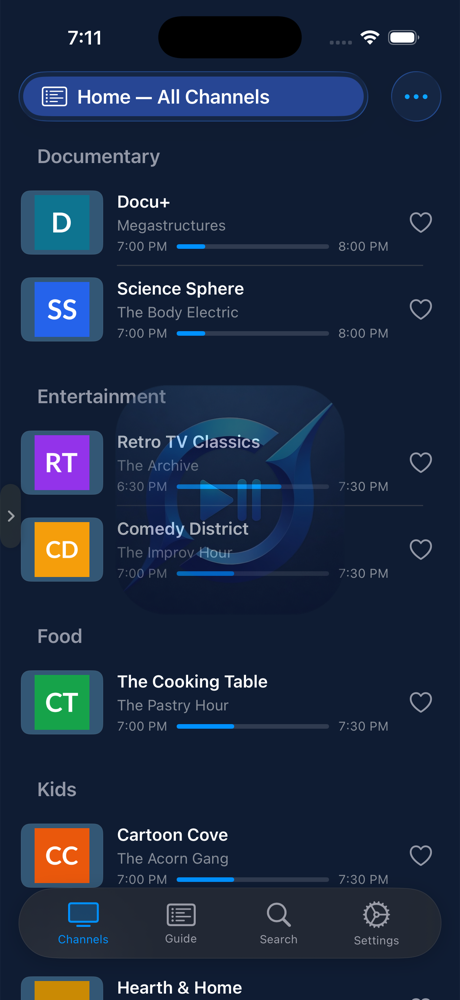
The Channels tab is your lineup. Each row tells you a lot at a glance:
- Logo and name — the playing channel's name is highlighted.
- What's on now — the current program's title with a progress bar and its start and end times (when guide data is available).
- Heart — tap it to favorite a channel. A filled red heart means it's in your Favorites.
- Green clock badge — this channel offers catchup, and the number tells you how many days back you can go (chapter 7).
- Red record badge — your GiVo Server is recording this channel right now.
Tap any row to start playing. Long-press a row for more options.
3.3 The sidebar: playlists & categories
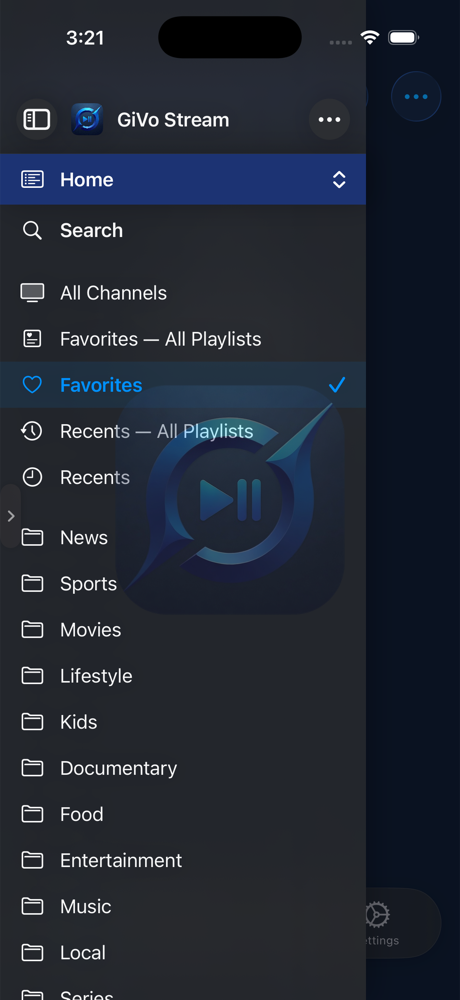
Swipe in from the left edge of the screen — or tap the sidebar button in the top corner — to open the sidebar. It holds:
- The playlist picker — switch the active playlist with one tap.
- Search — jump straight into search.
- Categories — All Channels, your Favorites (for the current playlist or across all playlists), Recently Watched, and every category from your playlist. Categories you've hidden or reordered in Playlist Customization are respected here.
Pick a category and both the Channels list and the Guide filter to it — the selection follows you between tabs.
3.4 The Guide
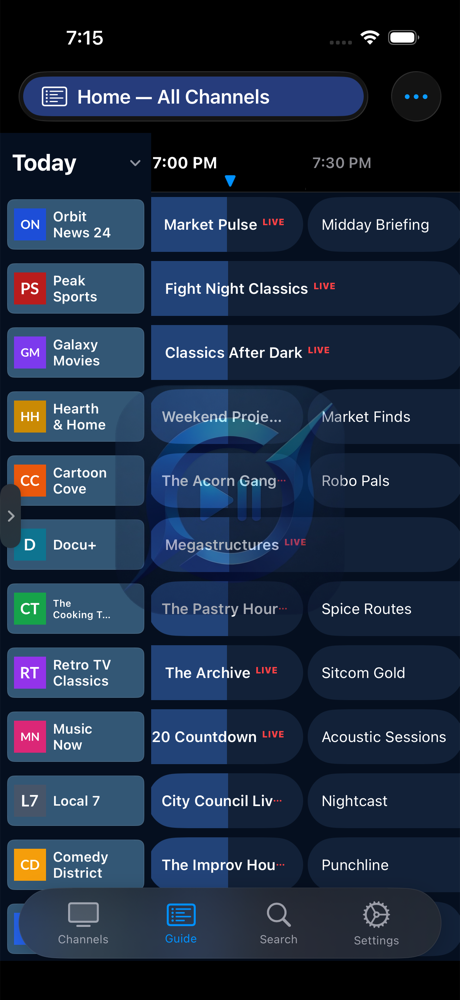
The Guide is a scrolling grid: channels down the left, time across the top in 30-minute slots, and a red now-line marking the current moment. The row of the channel you're watching is tinted blue. Scroll ahead to see what's coming; a Today button snaps you back when you've wandered. The day picker in the corner steps between days or jumps straight to a date — as far ahead as your provider's guide and your guide-depth setting allow.
Tapping behaves the way you'd hope:
- A program airing now — starts playing immediately.
- A future program — opens its detail sheet: full description, times, and buttons to Set Reminder or — with a paired GiVo Server — Schedule Recording.
- A past program — opens the detail sheet with Play Catchup when the channel's replay archive has it (chapter 7).
3.5 The player
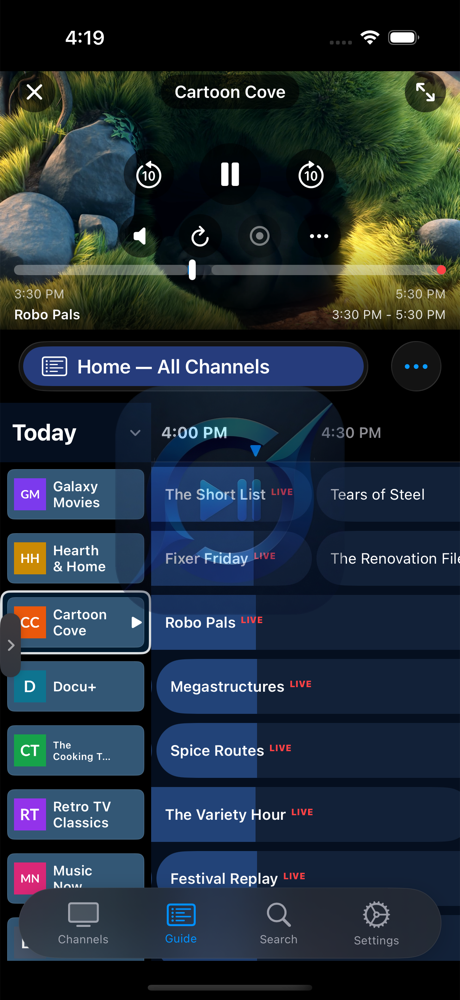
Playback lives in a 16:9 tile at the top of the screen, so you can keep browsing underneath. Tap the tile to go fullscreen; swipe down to shrink it back. In fullscreen, tap anywhere to show the controls — they fade out on their own after a few seconds.
Top edge: a close button, and the live indicator — a red dot with LIVE when you're at the live edge, or a gray dot with a countdown like −2:45 showing how far behind live you are.
Center: rewind, play/pause, and fast-forward. The jump size is yours — 10, 15, 30, or 60 seconds, set in Settings → Playback.
Bottom: the channel logo, the current program with its time range, and the full-width progress bar — drag anywhere on it to scrub. (What the bar's colors mean is chapter 5.)
The side controls:
- Mute — one tap to silence, one to restore.
- Restart Stream — re-opens the stream cleanly if a source is misbehaving.
- Record — start recording the current program to your GiVo Server, with options for how much to capture.
- Picture in Picture — pop the video into a floating window over other apps.
- Channel variants — see the same channel from your other playlists and switch sources without leaving playback.
- The … menu — audio tracks, subtitles and captions, aspect ratio, AirPlay and Chromecast, and quick access to Settings.
3.6 Picture in Picture, AirPlay & background audio
Tap the PiP button and the video floats above whatever else you're doing — resize it, move it, keep watching. Leave the app entirely and the audio keeps playing in the background, with full Lock Screen and Control Center controls: play/pause and skip buttons that honor the same jump intervals you chose in Playback settings. AirPlay and Chromecast live in the player's side controls — send the stream to a bigger screen with two taps.
3.7 Search
Search looks across your channels — and program titles in the guide — in every playlist at once, with results grouped by playlist. It's available as its own tab, from the sidebar, and from the nav bar in Channels.
↑ Back to contents4 · On Apple TV
4.1 The home screen
GiVo Stream on Apple TV opens straight into the action: a live preview tile in the top-left playing your last channel (the app remembers where you left off), a program panel beside it showing what's on now with a progress bar — plus optional extras like what's up next, video stats, and a clock — and the full Guide grid below. A sticky time header keeps ON NOW and the 30-minute slots in view as you browse. Click the preview tile to go fullscreen.
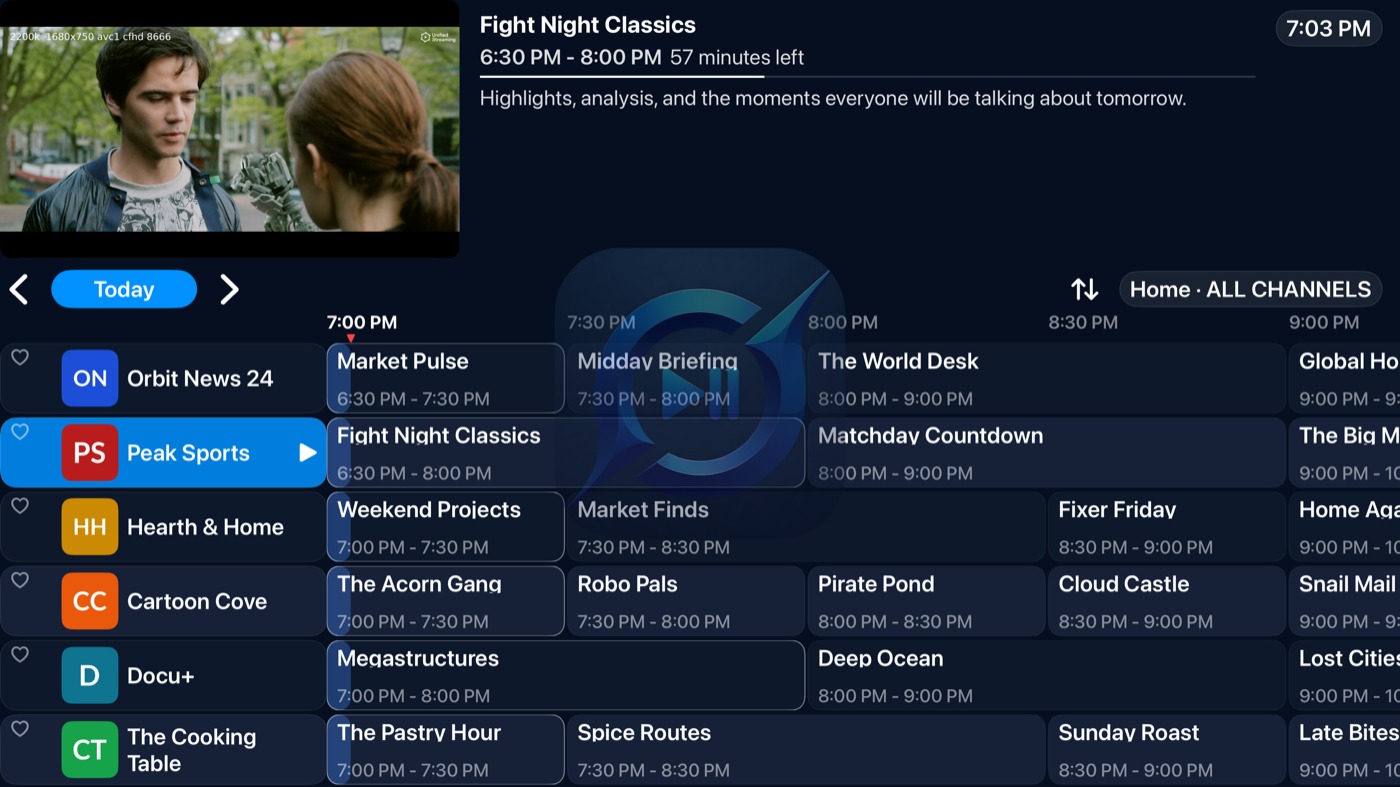
4.2 The sidebar & navigation rail
From the channel column, press ← once and the categories sidebar slides in: the playlist picker on top, then All, Favorites, Recently Watched, and every category from your playlist. Press ← again for the navigation rail — the app's main menu: Guide, Search, Reminders, DVR, Catchup, and Settings. Two presses from anywhere in the guide to everywhere in the app.
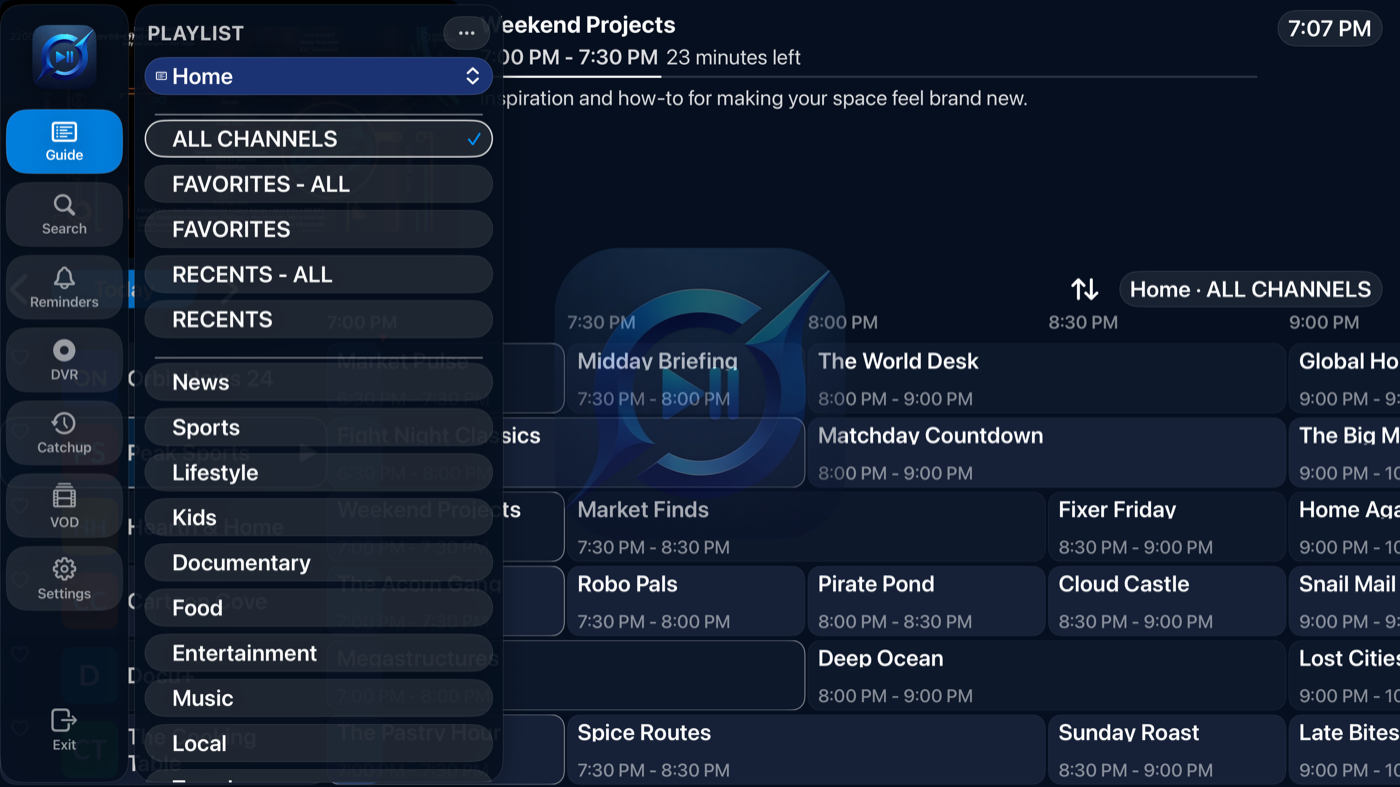
4.3 The Guide on the big screen
Glide through the grid with the remote — up and down through channels, right into the future, with day controls above the grid for bigger jumps. Press Select on a program and GiVo Stream does the smart thing:
- Airing now — plays it, fullscreen.
- In the future — opens a panel with Set Reminder and Schedule Recording.
- In the past — opens a panel with Watch Catchup and Record Catchup when the channel's archive has it.
Long-press any channel or program for more: add or remove a favorite, or View Programs — a clean, scrollable list of everything airing on that channel.
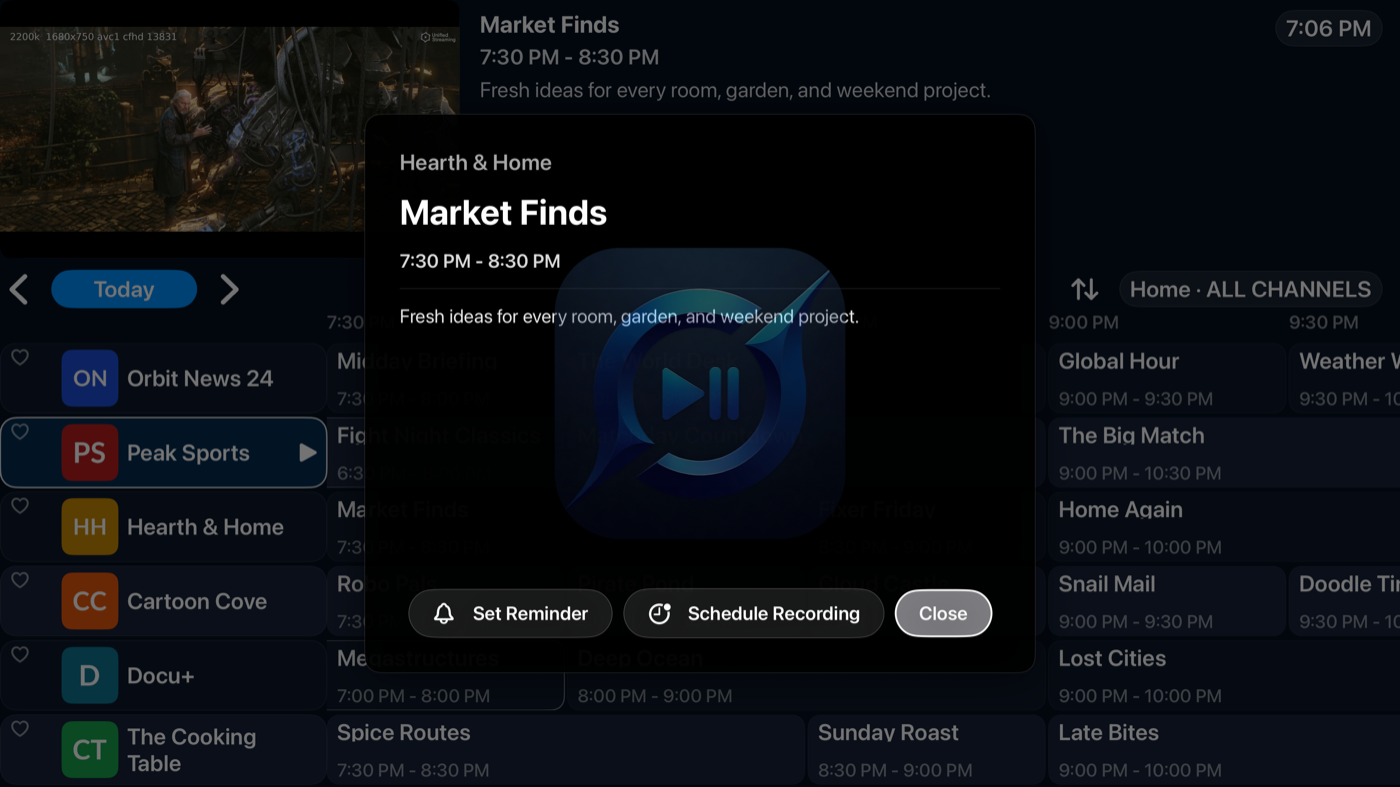
4.4 The fullscreen player & your remote
In fullscreen playback, the remote is the interface. With the controls hidden, every direction does something useful:
| You do | GiVo Stream does |
|---|---|
| Click the touchpad | Shows the info overlay and playback controls (chapter 4.5). |
| Press Play/Pause | Pauses or resumes — instantly, overlay or not. |
| Press ↑ / ↓ | Channel zapping — steps to the previous or next channel in your current category, with a banner showing where you've landed. Zap fast; it tunes when you settle. (Can be remapped or turned off in Customization.) |
| Press ← | Opens the Mini Guide — a slim panel of your channels with what's on now and next — without interrupting playback. |
| Press → | Opens the recordings & catchup panel (chapter 4.7; remappable in Customization). |
| Swipe down | Shows the program detail pane — synopsis, times, and actions — and from there, the nav bar (chapter 4.9). |
| Swipe up | Shows your recent channels strip (chapter 4.8) — click one to jump back. |
| Press Back | Returns to the Guide, with the preview tile still playing. |
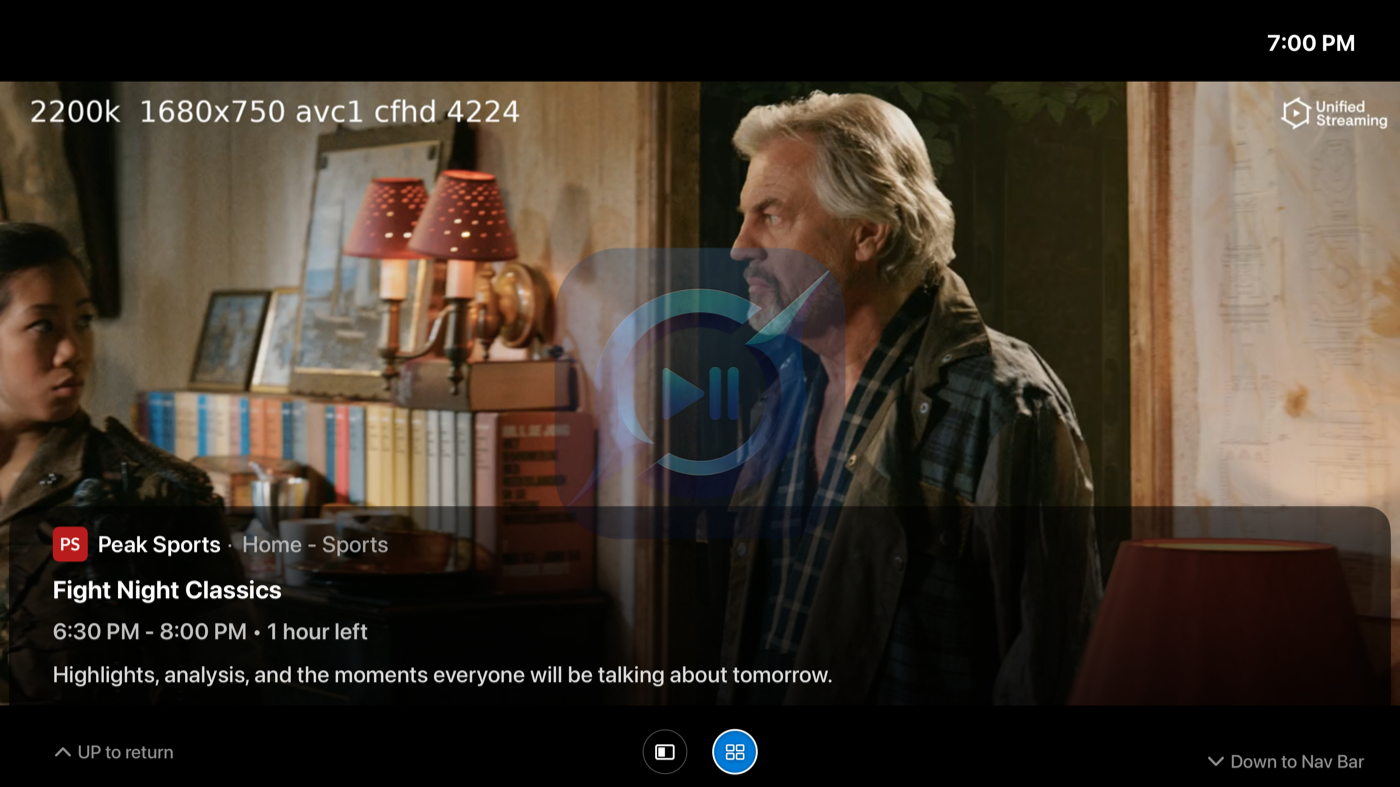
4.5 The info overlay
Click the touchpad during playback and the overlay appears: the channel's logo, name, and its playlist & category; the program title; the air window with time remaining ("8:00 – 9:00 PM · 45 minutes left"); and the color-coded progress bar. It dismisses itself after a few seconds — 3, 7, 10, or 15, your choice in Customization.
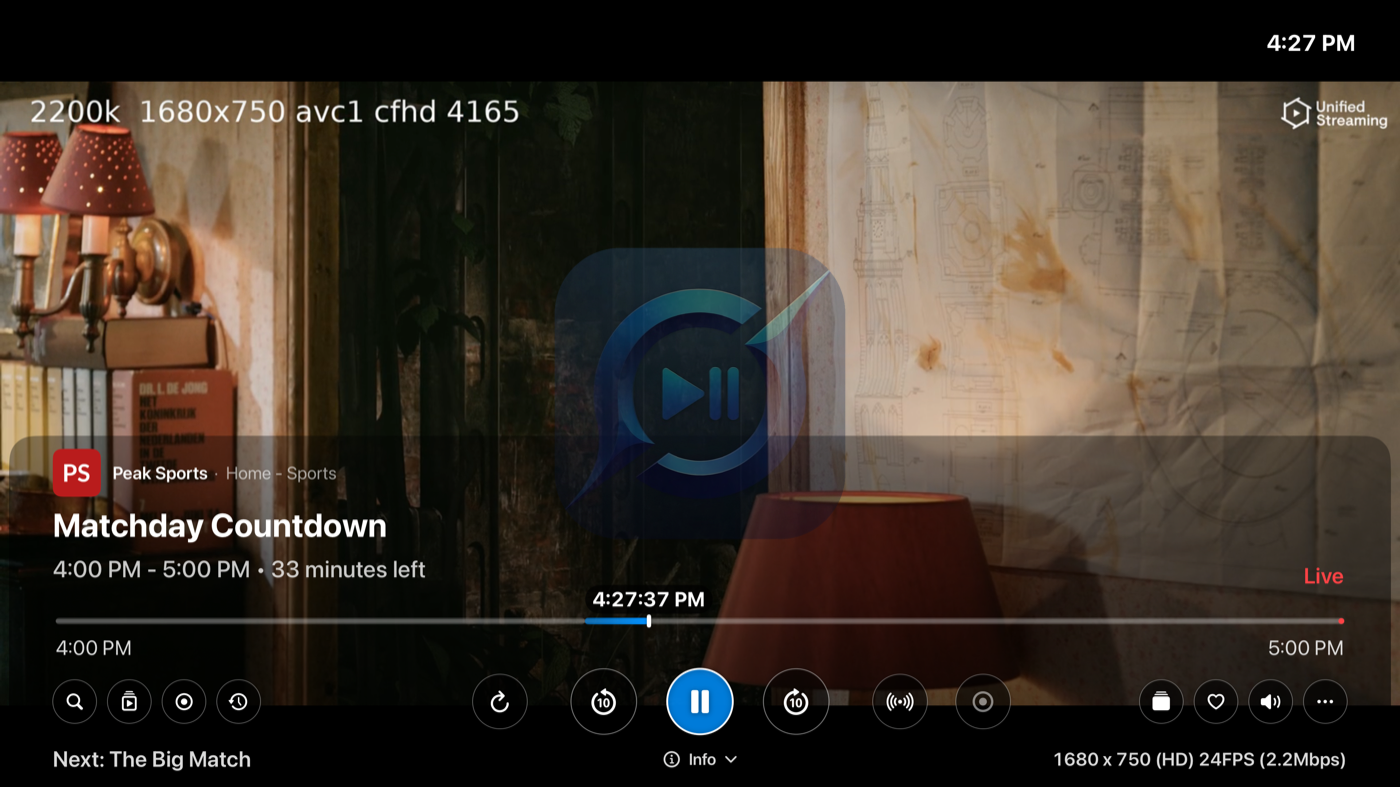
The control row: rewind, play/pause, and fast-forward (with your configured jump sizes), program details, Resume Live (appears whenever you're behind the live edge), mute, captions, and Restart Stream.
Captions & audio: the captions button lists every subtitle track in the stream, plus an Appearance editor for font, size, and background. Audio tracks — languages, stereo or surround — are picked the same way.
Shortcut buttons line the bottom of the overlay — Quick Search, Full Guide, Mini Guide, Recent Catchup, DVR, and Recently Watched — and every one of them can be shown or hidden in Settings → Customization. On the right, the … menu holds aspect ratio and playback settings (speed, scaling, and more), and Channel Variants lists the same channel from your other playlists.
4.6 Mini Guide, Quick Search & zapping
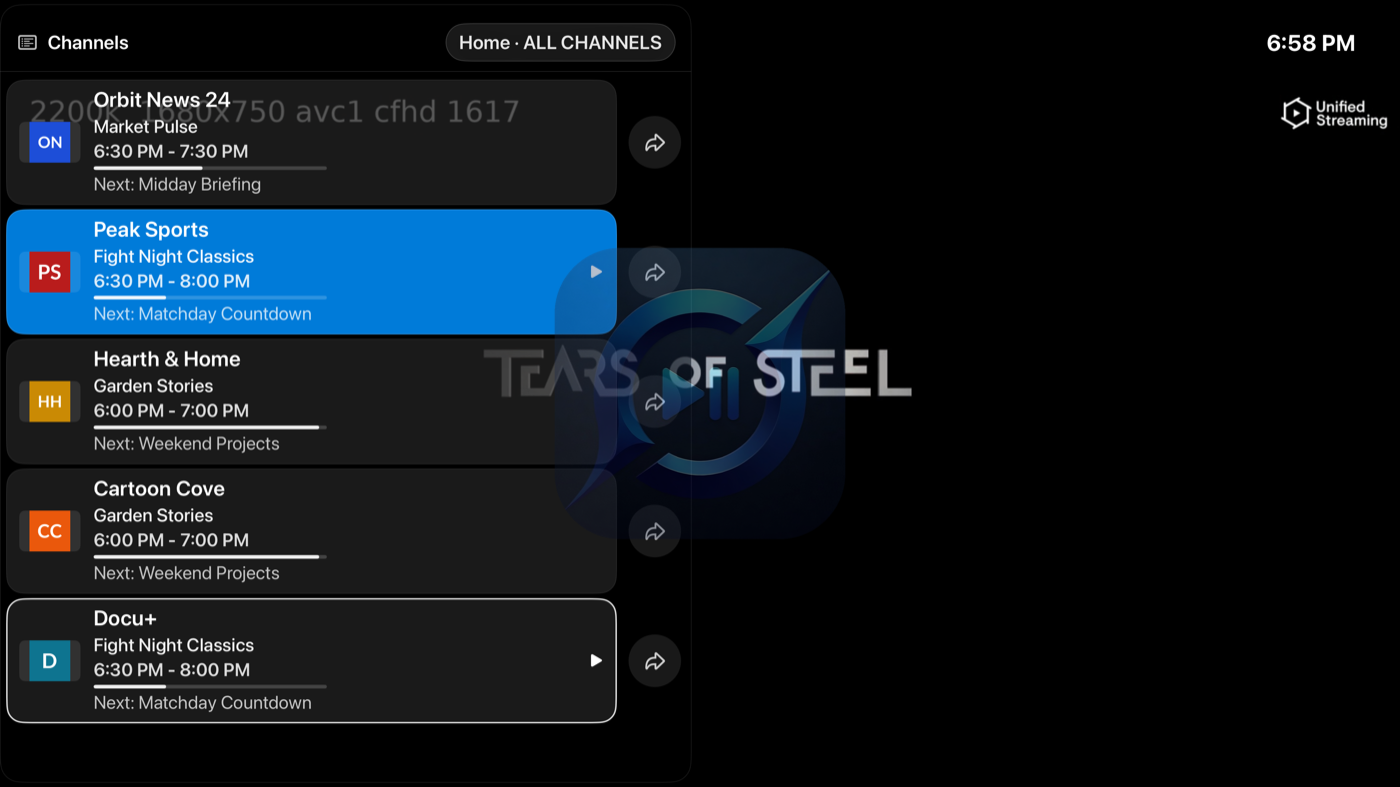
Mini Guide (← during playback) is the fastest way to answer "what else is on?" — a translucent channel list with now & next, progress, and badges for favorites, catchup, and recordings, while your stream keeps playing. Each row has a View Programs arrow for that channel's full schedule.
Quick Search overlays a keyboard for channel names, program titles, and categories, and remembers your recent searches.
Channel zapping (↑/↓) is built for the couch: flick through the lineup with a banner naming each stop, and the player tunes the moment you linger.
4.7 The recordings & catchup panel
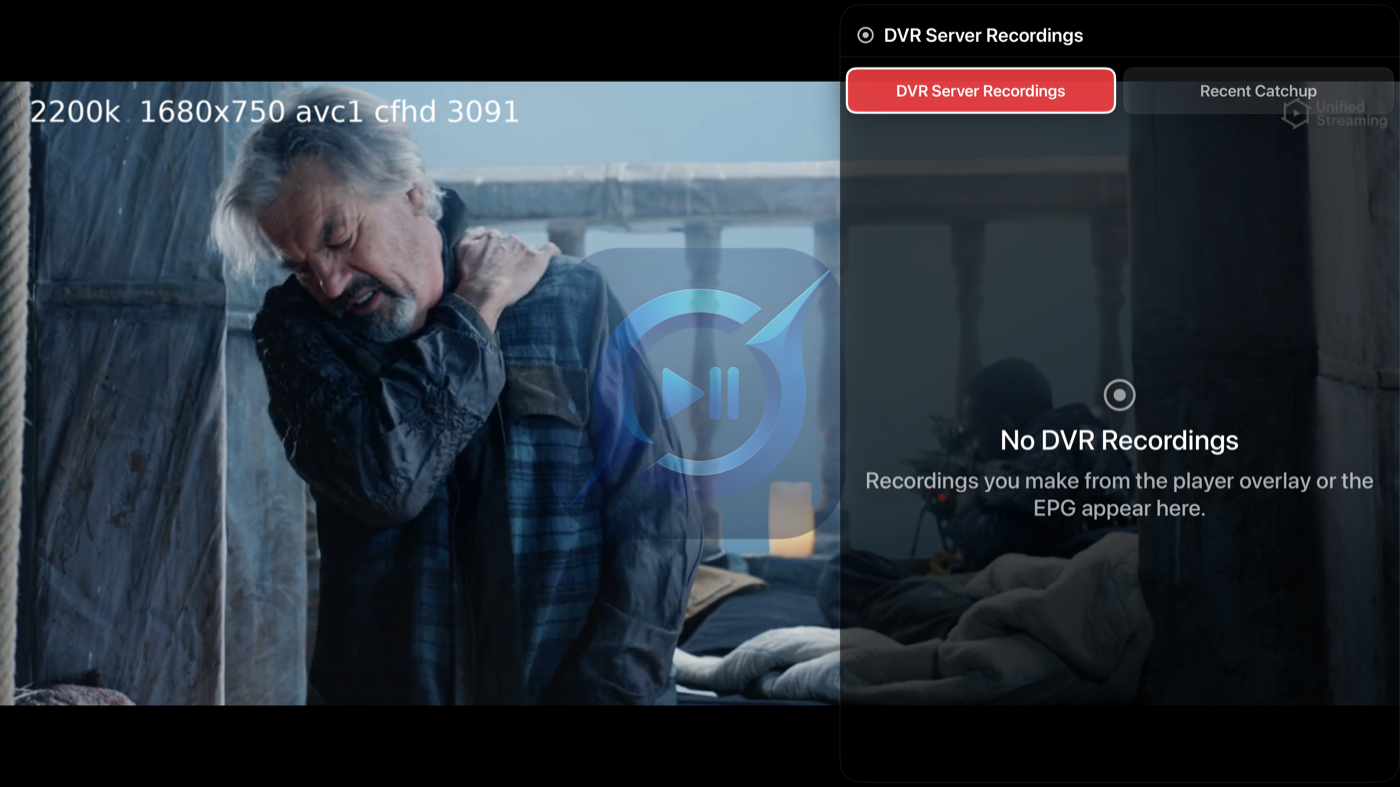
Press → during playback and a panel slides in from the right edge with two views under a toggle at the top:
- DVR Server Recordings — your library, without leaving the stream: finished recordings and in-progress ones (with their recording window), each labeled with where it came from (playlist · category). Select one to start watching — even while it's still recording.
- Recent Catchup — the replays you've been watching, with resume positions, ready to pick up mid-program.
The same two views are one press away in the info overlay's shortcut buttons. And if you'd rather have ←/→ do rewind and fast-forward instead, remap them in Settings → Customization → Left/Right Buttons — Mini Guide on the left and this panel on the right is the default.
4.8 Recent channels
Swipe up on the bare surface (controls hidden) and a strip of your recently watched channels appears over the stream — click one to jump straight back to it. It's the fastest way to bounce between two channels. The strip is also one of the overlay's shortcut buttons (Recently Watched), and you can choose whether it draws from all playlists or just the active one — and how many channels it keeps — in Settings → Customization → Recently Watched.
4.9 The player's nav bar
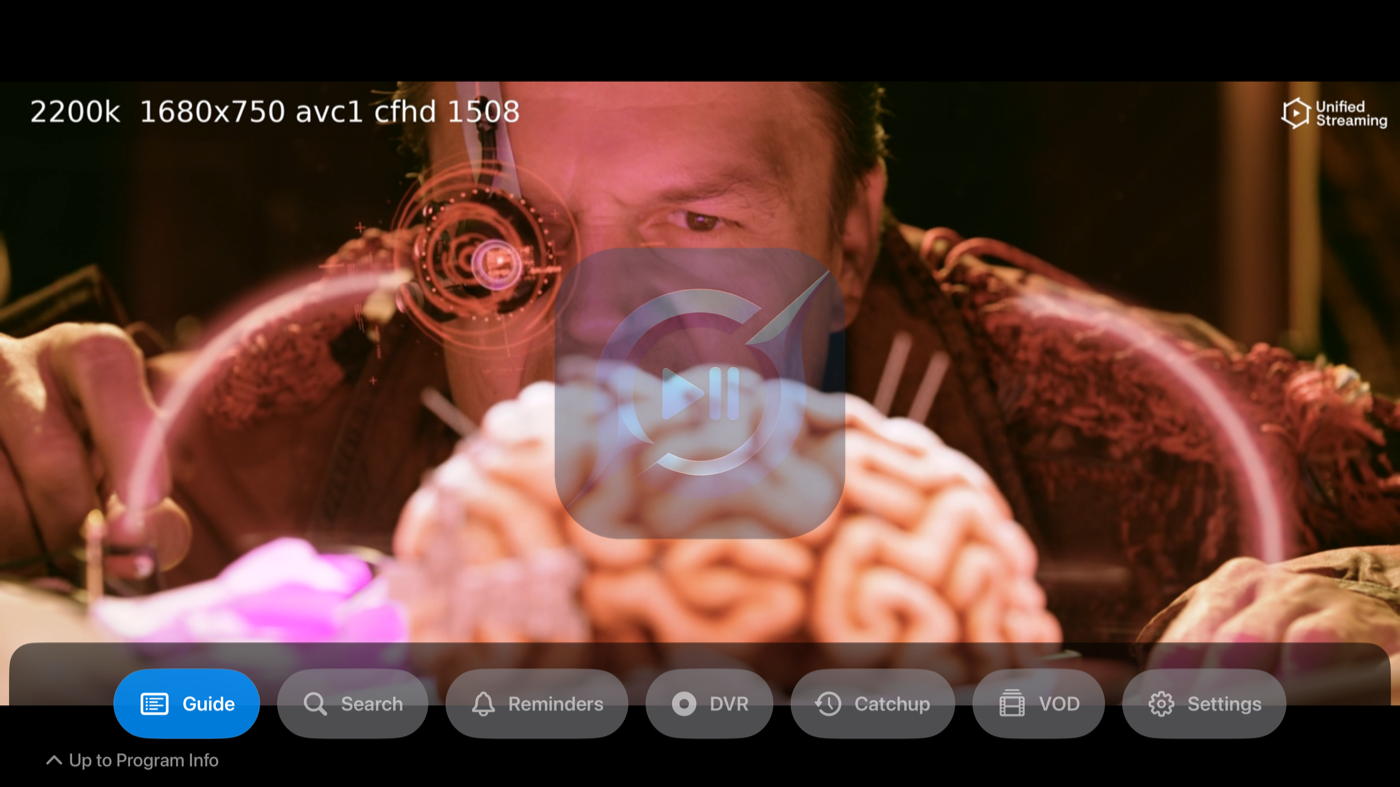
You can reach every section of the app without ever leaving fullscreen. Swipe down to open the program pane (chapter 4.4), then press ↓ again — the pane's corner shows a "Down to Nav Bar" hint — and a horizontal nav bar rises along the bottom edge: the same destinations as the navigation rail (Guide, Search, Reminders, DVR, Catchup), laid out left to right. Step across with ←/→ and select one to jump there — the player tucks itself back into the preview tile. Press ↑ to climb back up to the program info instead.
5 · The progress bar, decoded
The progress bar at the bottom of the player isn't just a position indicator — it's a map of what you can do. Each color is a different kind of content, and the bar redraws live as buffers grow and recordings run. Here's the whole language:
| You see | It means | You can |
|---|---|---|
| Solid red | Recorded content you've already watched. The bar fills toward solid red behind the playhead as you make your way through a recording. | Scrub anywhere in it, freely. |
| Light red | Recorded content waiting for you — captured, but not watched yet. A fresh recording starts light red end to end and turns solid as you watch. | Skip ahead into it anytime. |
| Light orange | A commercial break the server detected in the recording (needs Ad Skip — see Commercial skip). Light means you haven't reached it yet. | Skip it with one press when you get there — or let Auto Skip jump it for you. |
| Solid orange | A commercial break you've already watched past or skipped. | Nothing — it's behind you. |
| Blue | Your live buffer — the rewindable window GiVo Stream keeps on-device from the moment a stream starts. (On iPhone and iPad it's drawn in your theme's accent color.) | Pause, rewind, and scrub within it. |
| Bright green | Catchup playback — the part you've already watched. | Scrub back through it. |
| Medium green | Catchup — available, but not watched yet. | Skip ahead into it. |
| Faded green | Catchup — the part of the program that hasn't aired yet. | Wait — it's not available yet. |
| Gray | Out of reach — before your buffer began, or a part of the program that hasn't been captured yet. | Nothing yet — the bar fills in as content arrives. |
| White tick | The recorded edge — "now" — while you play a recording that's still in progress. Red to its left is yours; gray to its right hasn't happened. | Watch the red side catch up to it. |
| Black ticks | Gaps where the source stream dropped out during a recording. | Nothing needed — playback skips over them automatically. |
| The knob | Your playhead. It grows a blue ring while you're scrubbing, with a floating clock above it showing exactly where you'll land. | Drag it. |
| Red dot, right edge | You're at the live edge — as current as it gets. | Rewind anytime; Resume Live brings you back. |
Around the bar: the program's start and end times sit at the corners, a floating clock rides above the knob (it turns red while you scrub), and the top-right corner shows LIVE in red when you're at the edge — or how far behind it you've paused, like −5m 22s.
Three everyday moments, drawn out:
The same color language shows up in miniature all over the app: a filled red record badge means recording now, an outlined one means scheduled; a red bell is a reminder; a red heart is a favorite; a green clock means catchup is available; and a blue-tinted row is the channel you're watching.
↑ Back to contents6 · Recording with GiVo Server
GiVo Server is the free companion app for macOS, Windows, and Linux (including Docker) that turns GiVo Stream into a full DVR. It records on your own Mac, PC, or NAS, and every Apple device you've paired can schedule and watch the recordings. Download it here.
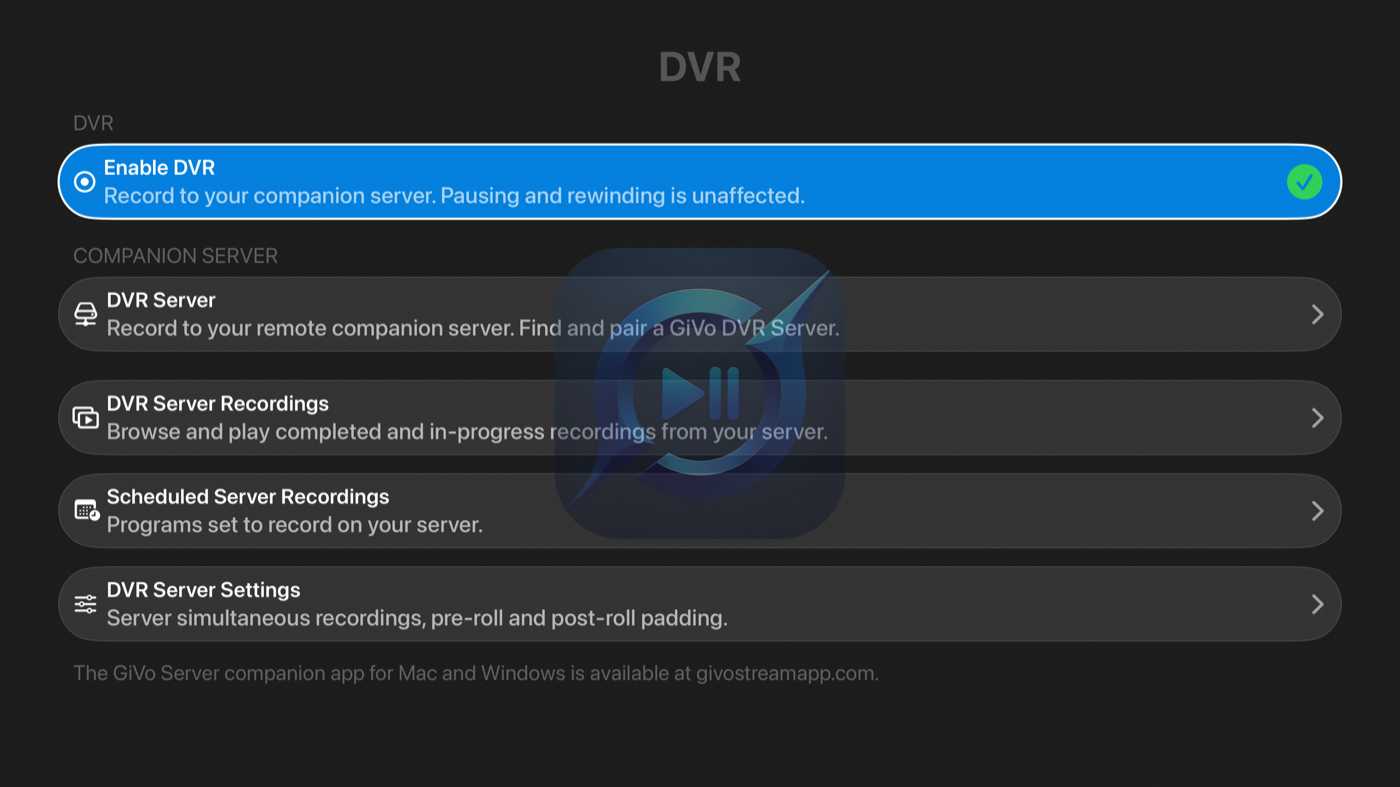
Pairing
- Install GiVo Server on a computer that stays on your home network and launch it — it lives in the Mac menu bar or the Windows system tray.
- In GiVo Stream, go to Settings → DVR and turn on Enable DVR. Your server appears under Available Servers.
- Select it and enter the pairing code shown in the server's menu — click the code there to copy it. (You can set your own 6-digit code in the server's settings.)
If discovery can't see the server, Add Server Manually with its IP address and port works on any network. Each server keeps a Local Address for your home Wi-Fi and an optional Remote Address for connecting from outside your home with Tailscale — GiVo Stream switches between them automatically, so one paired server works both at home and away.
Recording
- Record what you're watching — the record button in the player starts capturing the current program, with options for how much to record.
- Schedule from the Guide — open any future program and choose Schedule Recording. The server wakes up and records it whether your Apple devices are on or not.
- Record a replay — on catchup-enabled channels, Record Catchup saves a program that already aired (chapter 7).
In DVR Server Settings you can add pre-roll and post-roll padding — start a little early, end a little late — and set how many recordings may run at once.
Your library
DVR Server Recordings lists everything: in-progress recordings (which you can watch live as they record — that's the red bar with the white tick from chapter 5 — or Stop to keep what's been captured), and completed ones, with resume positions, durations, and swipe-to-delete. Scheduled Server Recordings shows what's queued; delete an entry to cancel it. The DVR screen always shows your server's status — and a red OFFLINE badge with usage meters when something needs attention.
Commercial skip
With a paired GiVo Server, finished recordings can skip their ad breaks. Detection runs on the server a few minutes after a recording completes — when a recording's breaks are ready, its row wears a blue Ad Skip badge.
- Turn it on (server) — in the GiVo Server app on your Mac or PC (or the web settings on Linux/NAS), open Settings and enable Commercial Skip. Every new recording and saved catchup program is then analyzed automatically.
- Turn it on (app) — go to DVR → DVR Server Settings and enable Commercial Skip Button. While you watch, a Skip Commercial button appears as each break starts — press it to jump straight back to the show.
- Fully automatic — enable Auto Skip Commercials as well and playback jumps past each break by itself, no button needed.
- See the breaks — detected breaks are drawn in orange on the progress bar, so you always know where the ads are; each segment turns solid as you watch past or skip it.
Commercial skip applies to server recordings and saved catchup programs. Detection accuracy varies with how a channel formats its breaks — and you can always scrub any recording normally.
Captions on recordings
Recordings keep their captions. When a channel broadcasts closed captions, the server extracts them automatically after the recording finishes — they show up in the player's captions menu like any other subtitle track, styled by your caption-appearance settings. The same goes for movies and series you save to the server: any subtitle tracks in the source are pulled out and offered alongside the video. No setup needed — if the source carried captions, your recording has them.
↑ Back to contents7 · Catchup: replay what you missed
Many content sources keep a replay archive — a few days of past programs you can play on demand. GiVo Stream calls this catchup, and channels that support it wear a green clock badge with the number of days the archive reaches back.
- From the Guide — open any past program on a catchup channel and choose Play Catchup (or Watch Catchup on Apple TV). The green progress bar from chapter 5 takes over.
- Recent Catchup — a running list of the replays you've watched, each with a resume position so you can pick up mid-program. Find it as its own tab on iPhone and iPad, or in the navigation rail on Apple TV.
- Record Catchup — with a paired GiVo Server, save a replay as a permanent recording.
Instant scrubbing with Pre-Buffer
When you open a replay, GiVo Stream quietly buffers the program in the background while you watch — the buffered stretch fills in along the progress bar. Anywhere inside it, skipping and rewinding are instant. Jump ahead of the buffer and playback simply restarts at that point, with the buffer rebuilding from there; on a program that's still airing, the buffer reaches up to the newest moment available.
Pre-Buffer is on by default. If you'd rather catchup play as a plain stream, turn it off in Settings → Playback → Pre-Buffer Catchup.
If a channel's replay timing looks shifted relative to the guide, Settings → Catchup lets you set a per-channel time offset to line things up.
↑ Back to contents8 · VOD: Movies & series
If your provider offers movies and series on demand, GiVo Stream gives them a home of their own — a poster-rich library you browse, search, and play exactly like a streaming app. Look for the Movies & Series area: a tab on iPhone and iPad (promote it in Settings → Customization → Home Tabs to keep it front and center), or in the navigation rail on Apple TV.
Browse
The home screen is built from poster rows — one per category, from New Movies and Series to individual genres and whatever else your provider supplies. Focus or tap a poster and a full-bleed backdrop fades in behind it with the title, year, and rating. Use Browse to switch playlists and Select Categories to choose which rows appear (a lifesaver with providers that ship thousands). A Movies / Series filter and a per-row "back to top" arrow keep big catalogs manageable.
Details
Open any title for its detail page: poster, plot, cast, director, genre, runtime, and — where available — a trailer and a More in this genre row. Series expand into seasons and episodes. Add an optional TMDB key in Settings and GiVo Stream fills in the artwork, descriptions, and trailers your playlist leaves blank.
Watching
Play picks up where you left off, and the player carries the same controls as the rest of the app — scrub, skip, and a Tracks button for audio and subtitle selection. Series roll on with autoplay next episode and a countdown card, plus a Skip Intro chip when one is detected.
Your library
The Library tab keeps what matters: a Watchlist of titles you've saved, In Progress for anything half-watched, and Completed for what you've finished — each with an All / Movies / Series filter. Your library follows you across devices (chapter 14).
Search & save
The Search tab finds titles across your catalog, remembers recent searches, and plays a result without losing your place. And with a paired GiVo Server, Save to DVR Server on any detail page keeps a permanent copy — it appears under DVR Server Saves in your Library, ready to stream back anytime. While the server is pulling the title down, its Library row shows live progress — Saving… 42% — so you always know how far along the save is; when the percentage disappears, the copy is complete and ready to watch.
↑ Back to contents9 · Multiview
Multiview puts several live channels on one screen — perfect for a slate of games, or keeping an eye on the news while something else plays. Open it from the navigation rail on Apple TV, or the Multiview control on iPhone and iPad, and it drops you straight into a live split-screen.
- Pick a layout. Anything from a single large window up to a four-up grid, or a spotlight layout with one larger tile and smaller ones alongside.
- Tap a tile for its menu. Change that tile's channel from the app's mini-guide, move it, add or remove a window, or send it fullscreen. Tap a tile's audio to make it the one you hear — only one plays sound at a time.
- Go big, then back. Send a tile fullscreen to watch it on its own; exit and you're back in the mosaic, or out to that channel full-screen.
- Save your setup. Keep a favorite arrangement and reload it next time instead of rebuilding it.
Multiview decodes every window at once, so it asks for a healthy connection — if your network looks tight when you open it, GiVo Stream tells you up front. Live and catchup streams both work, and if a window ever stalls, its little menu has a Restart.
↑ Back to contents10 · Sports Zone
Sports Zone follows your teams and leagues and finds every channel and program in your playlists that carries them. Home shows what's live and coming up, every team and league gets its own page, and on Apple TV a Sports Sidebar shows scores over the player.
Turn it on
Open Settings → Sports Zone. The first time, it asks you to add a team. Under Nav Menu you choose where Sports Zone shows up: the tab bar, the nav sidebar, or both.
Add your teams and leagues
- From a data source. Add a Team or Add a League lets you pick from a sports data source's list, so you get live scores, schedules, results and standings.
- By name. Follow by Name needs no data source. The team's page is built from your guide: where to watch and what's coming up.
- Manage them. Teams and Leagues in Sports Zone settings lists everything you follow. Open one to set its Search In, Search Terms and Data Source, or to unfollow it.
Connect a data source
Scores come from a sports data source you connect with your own key: BALLDONTLIE, SportsGameOdds, Highlightly, football-data.org, TheSportsDB or API-Sports. Free plans work, though some free plans don't include live scores. Add one in Data Sources, or use Add a Source right from Add a Team. Each profile keeps its own keys, and your devices share what they fetch, so one key goes further.
- More than one source. If a source runs out of requests, doesn't cover a league or can't answer, the next one takes over. To choose the order for a team, open it in Teams and Leagues → Data Source → Custom.
- Live Score Refresh. In Data Sources, this sets how often a live score updates while it's on screen. Automatic picks a rate that fits each source's plan.
- Pause a source. Pause This Source stops using it but keeps its key.
Home
Home shows your teams, what's live now and what's coming up. Pick a game and Watch On lists every channel carrying it, with your favorite channels first. Hold a channel in that list to set a reminder, schedule a recording, or record a game that's already on (recording needs GiVo Server).
Team and league pages
A team page has the live score with the quarter, period or inning, the channels carrying the game, upcoming games, the last ten results, standings and stats. A league page has scores by day (use ‹ Today › to move between days) and standings.
Finding the right games: Search In & Search Terms
- Search In sets which playlists, categories or channels are searched for a team. With nothing checked, it searches all your playlists.
- Search Terms sets the words and phrases a team is found by. Under Exclude, add words or phrases to leave out, for example a channel that says "no game today".
Layouts
Every team page uses a layout: Game Day, Browse, Stats, or one of your own. Use Layout on a team page to switch, or Edit Layout… to choose and arrange the panels, then Save As… to keep it. Each team remembers the layout you set on it, and the Team Layout in Settings → Sports Zone → Layouts is the one teams start with. Home has its own layouts too. If you change a saved layout, every team using it changes with it, and your layouts sync between your devices.
The Sports Sidebar on Apple TV
The Sports Sidebar shows your teams' scores, what's live and where to watch it, right over the player. Turn it on in Settings → Customization → Player Info Panels, then press ↓ while watching and pick it from the info card, or set it as one of your While Watching buttons. Pick a game to see its channels and switch without leaving full screen.
Images, logos & background
Add your own pictures with Custom Team Images, turn on Team & League Logos from a data source that has them, and set a Sports Zone Background if you'd like one.
↑ Back to contents11 · Reminders
Found something you don't want to miss? Open the program in the Guide and choose Set Reminder. You'll get a notification just before it starts. Reminders pair beautifully with scheduled recordings — set both, and the program is waiting for you either way.
Every reminder lives in the Reminders list (a tab on iPhone and iPad, in the navigation rail on Apple TV), showing the program, channel, and time. Swipe to remove one, or Clear All to start fresh. Programs with a reminder wear a small red bell in the Guide.
↑ Back to contents12 · Profiles & sharing
A profile is a complete, separate setup inside the app — its own playlists, favorites, recently watched, customization and settings. Everyone in the house gets the app the way they like it, and nobody has to scroll past anyone else's channels.
Creating a profile
Go to Settings → Profiles and choose Create Profile. Give it a name and pick an avatar — one of the built-in choices, or a photo from your iPhone or iPad. You can change the avatar whenever you like, and each profile can have its own Backdrop, the artwork shown behind the Who's Watching screen.
When you create a profile you choose what it starts with: Fresh gives you an empty setup to build from scratch, and Copy Everything starts it as a copy of your current one. You can also copy your setup into an existing profile later with Copy My Setup Into This Profile.
Which profile opens
Two settings decide what happens when the app launches. Start With sets the general behavior — ask every time with Who's Watching, reopen the last profile used, or always open one particular profile. This Device Opens then lets a single device override that, so the Apple TV in the living room can always open the family profile while your iPhone reopens whichever you used last.
Locking a profile
Profile Lock puts a PIN on a profile, so switching into it asks for the code first. That is separate from parental controls, which restrict content within a profile — use a lock when you want the profile itself to be private, and parental controls when you want to limit what can be watched.
Sharing a profile with someone
Tap Share… on a profile and the app creates an invitation you can send however you like. Whoever opens it gets that profile on their own device, kept in step through iCloud — the same playlists, the same favorites, the same setup, updating for both of you.
The owner keeps control. The profile's name and avatar are managed by whoever created it, and the Shared Profiles screen shows exactly who currently has access. A profile someone has shared with you appears under Shared With You.
If you no longer want a profile that was shared with you, choose Leave. It disappears from your devices and the owner's data is untouched. If you own the profile, Delete Profile removes it for everyone.
When a profile is shared, GiVo Stream shows you a recovery code and asks you to confirm you have saved it. Keep it somewhere safe — it is how access is restored if something goes wrong, and it cannot be reissued for you.
↑ Back to contents13 · Customization, room by room
Settings → Customization is where GiVo Stream stops looking like everyone else's copy and starts looking like yours. Each area below is its own screen.
Themes
The app's overall look. Pick a theme and the guide, channel list and player all follow it.
Guide/Channels
How the two main screens are laid out and what they show: Guide Tab View and Channels Tab View choose what each tab opens to, Channel Numbers shows or hides numbering, Channel List Artwork and Program List Artwork control artwork, Guide Panel Backdrop sets the artwork behind the guide, and Channel Tap decides what a tap on a channel does.
Favorite Customization and Favorites - All Playlists
How favorites behave, and whether your hearts are gathered from every playlist into one list or kept per playlist.
Recently Watched
Whether recently watched appears, whether it spans all playlists, and — through Recently Watched Category — whether it shows up as a category inside the guide.
App Startup Options
What the app does when it opens.
Clock Format
12-hour or 24-hour, used everywhere a time is shown.
Sounds
Playback Controls Click Sounds and Recording-Finished Sound, each on or off.
Accessibility
Text Size and Monospaced Font for legibility, Reduce Flashing & Auto-Scroll for calmer motion, Prefer Audio Descriptions where a provider offers them, Player Controls Auto-Hide to keep the controls on screen longer, and Language.
Automatic Naming
Providers rarely name channels consistently — prefixes, country codes, quality tags and stray symbols. Automatic Naming cleans them up across a whole playlist at once, and Before and After shows you exactly what a rule will do before you keep it. The original names are never altered at the provider; this only changes what you see.
Custom Playlists and Categories
Build your own categories from channels across any of your playlists — a sports category, a kids category, one for the channels you actually watch — and they appear in the guide and channel list alongside the provider's own.
↑ Back to contents14 · Sync & Data
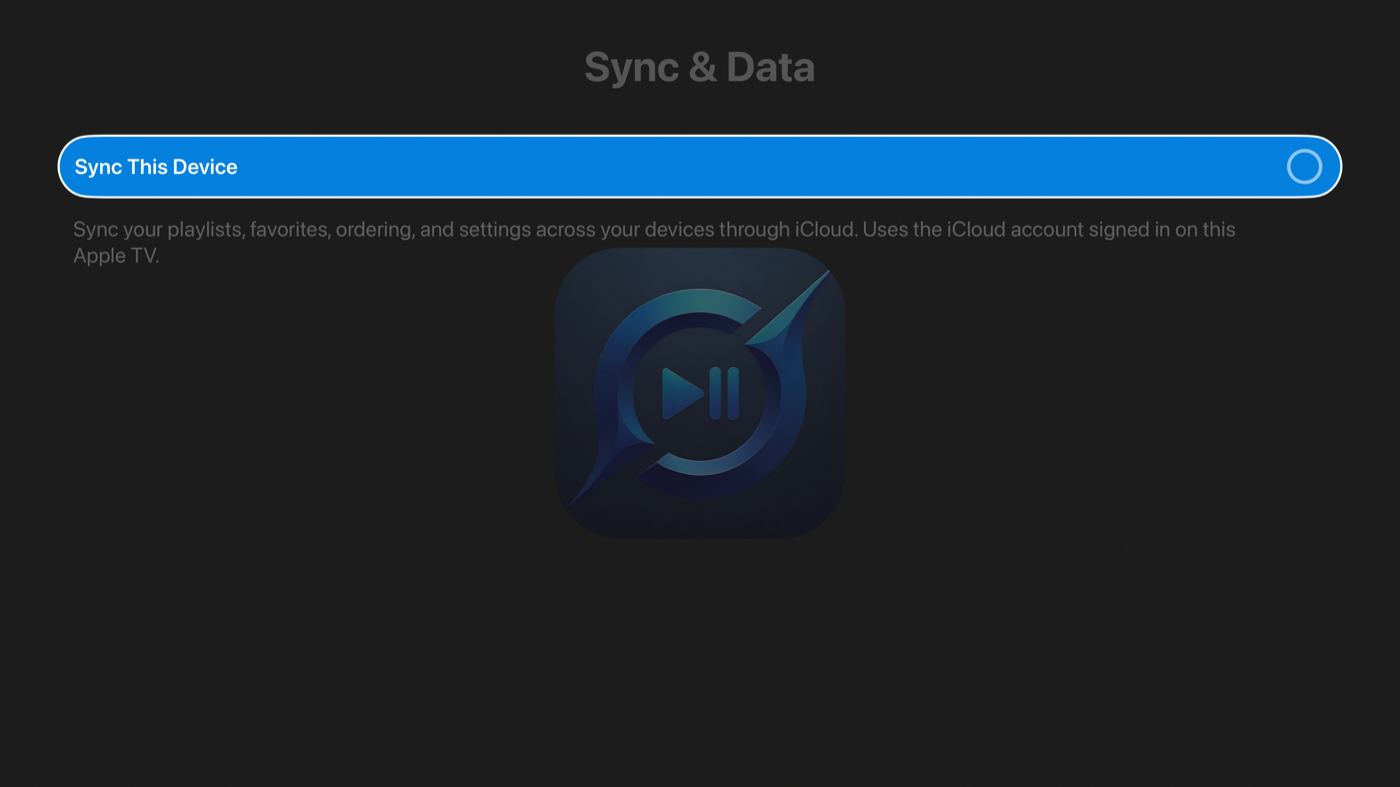
Turn on sync in Settings → Sync & Data and your setup follows you — playlists, favorites, settings, and more, kept in step across iPhone, iPad, and Apple TV. Everything travels through your own private iCloud; nothing passes through our servers, and we couldn't read it if it did.
Sync is granular: you choose exactly what syncs and what stays local to each device. Set up a new device and your channels, hearts, and preferences are simply there.
15 · Parental controls
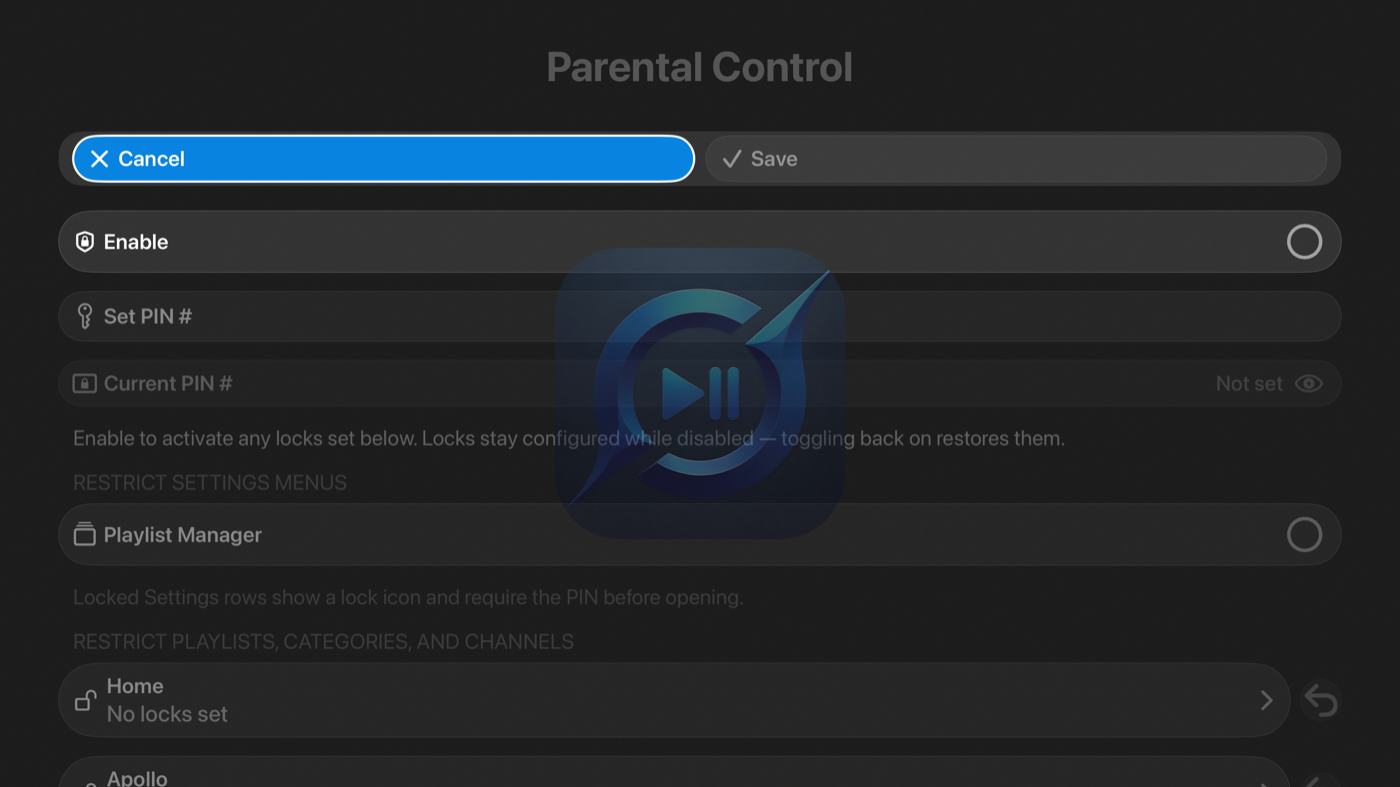
Settings → Parental Control gives you two layers of protection behind a 4-digit PIN:
- Lock — categories (and individual channels) that require the PIN to open. They're visible, but gated.
- Hide — channels that disappear from the lineup entirely, as if they were never there.
You can also lock the Playlist Manager itself, so the lineup can't be changed without the PIN. Entering the PIN unlocks gated content for the current session — but the Parental Control settings screen always asks again, every time. Perfect for shared devices like the living-room Apple TV.
16 · Settings, room by room
A quick map of everything behind the Settings tab, on both platforms:
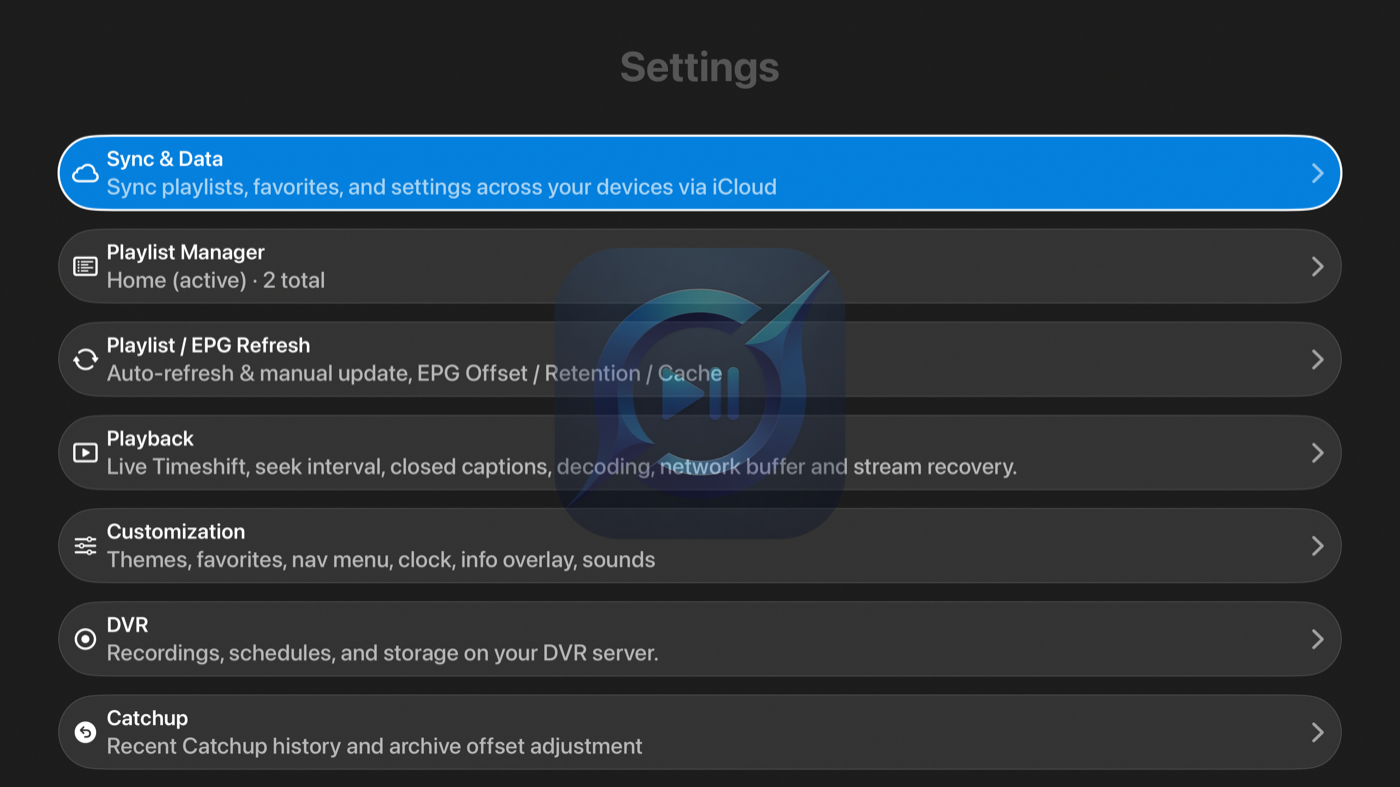
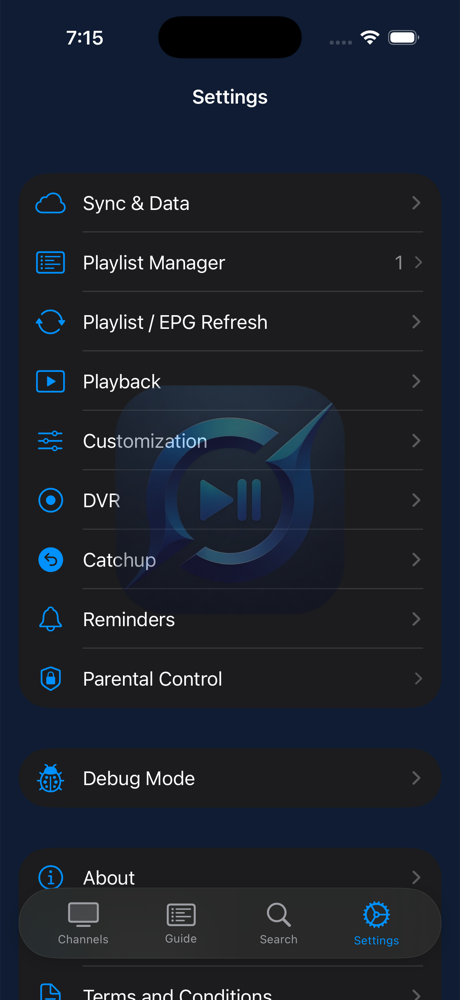
| Section | What lives there |
|---|---|
| Sync & Data | iCloud sync — turn it on, choose exactly what syncs (chapter 14). |
| Playlist Manager | Add, edit, reorder, and remove playlists; manage categories; rename and hide channels. |
| Playlist / EPG Refresh | Auto-refresh schedules for playlists and guide data, the DVR Server refresh switch (your server downloads for every device), how many days of guide data to keep, Refresh Now. |
| Playback | Rewind & fast-forward jump sizes (10/15/30/60s), caption appearance, buffering and stream-recovery behavior. |
| Customization | Themes, Home Tabs (iPhone & iPad), info-overlay elements and button mapping (Apple TV), channel zapping, overlay auto-hide timing, clock format, sounds. |
| DVR | Enable DVR, server pairing and status, recordings, schedule, padding (chapter 6). |
| Sports Zone | Teams and leagues, data sources and Live Score Refresh, layouts, team images, logos and background (chapter 10). |
| Catchup | Recent catchup history and per-channel time offsets (chapter 7). |
| Reminders | Every scheduled reminder, in one list (chapter 11). |
| Parental Control | PIN, locked categories, hidden channels (chapter 15). |
| About & Legal | Version info, privacy policy, terms, open-source licenses. |
17 · Tips & quick reference
- Pause is always free. The moment a stream starts, the blue buffer starts too — pause and rewind work on every stream, no server needed.
- Two left-presses. On Apple TV, ← ← from the guide reaches everything in the app.
- Make the tab bar yours. If you use Catchup or DVR daily, promote them to the tab bar on iPhone and iPad (chapter 3.1).
- Reminder + recording. Set both on a program you care about: you get the nudge, and the server gets the copy.
- Behind live? Look for Resume Live in the player — or just check the top corner for the red LIVE.
- Wrong-looking replay times? Per-channel catchup offsets in Settings → Catchup straighten them out.
- Same channel, better source. Channel Variants in the player lists the same channel from your other playlists — switch sources in two taps.
- Record away from home. Add your server's Tailscale IP as its Remote Address and the schedule button works from anywhere — setup walkthrough on the Support page.
Stuck on something this guide doesn't cover? The Support page has answers to common questions — or email support@givostreamapp.com and a human will get back to you.
↑ Back to contents